

Connect MaxCompute so that agents can access data in a project. No credentials required.
The MaxCompute connector lets agents access data in a MaxCompute project.
It is the simplest of all the Apps that require an auth config: the authentication method is OAuth 2.0, but you do not need to enter any credentials, and there is only one optional authorization scope.
After the connection succeeds, Connector generates tools for accessing MaxCompute data, which you can view in the Available tools section of the App details page.
Prerequisites
- You have an accessible MaxCompute project.
- You have created the auth config for MaxCompute.
Connection steps
1
Create the auth config
In the first step of Create an auth config, select MAX_COMPUTE. In the second step, the page prompts you to enter the authorization scope (optional).
Both fields can be left empty, and you can click Finish directly.
| Field | Required | Description |
|---|---|---|
| Config name | No | Tells multiple configs apart |
| Scope | No | The permission scope. If you leave it empty, the default value is used |
2
Open the connection dialog
On the Apps page, find the MAX_COMPUTE card, click Connect, and select the config you just created in Select auth config.
3
Complete the authorization
Click Confirm to complete the OAuth 2.0 authorization flow.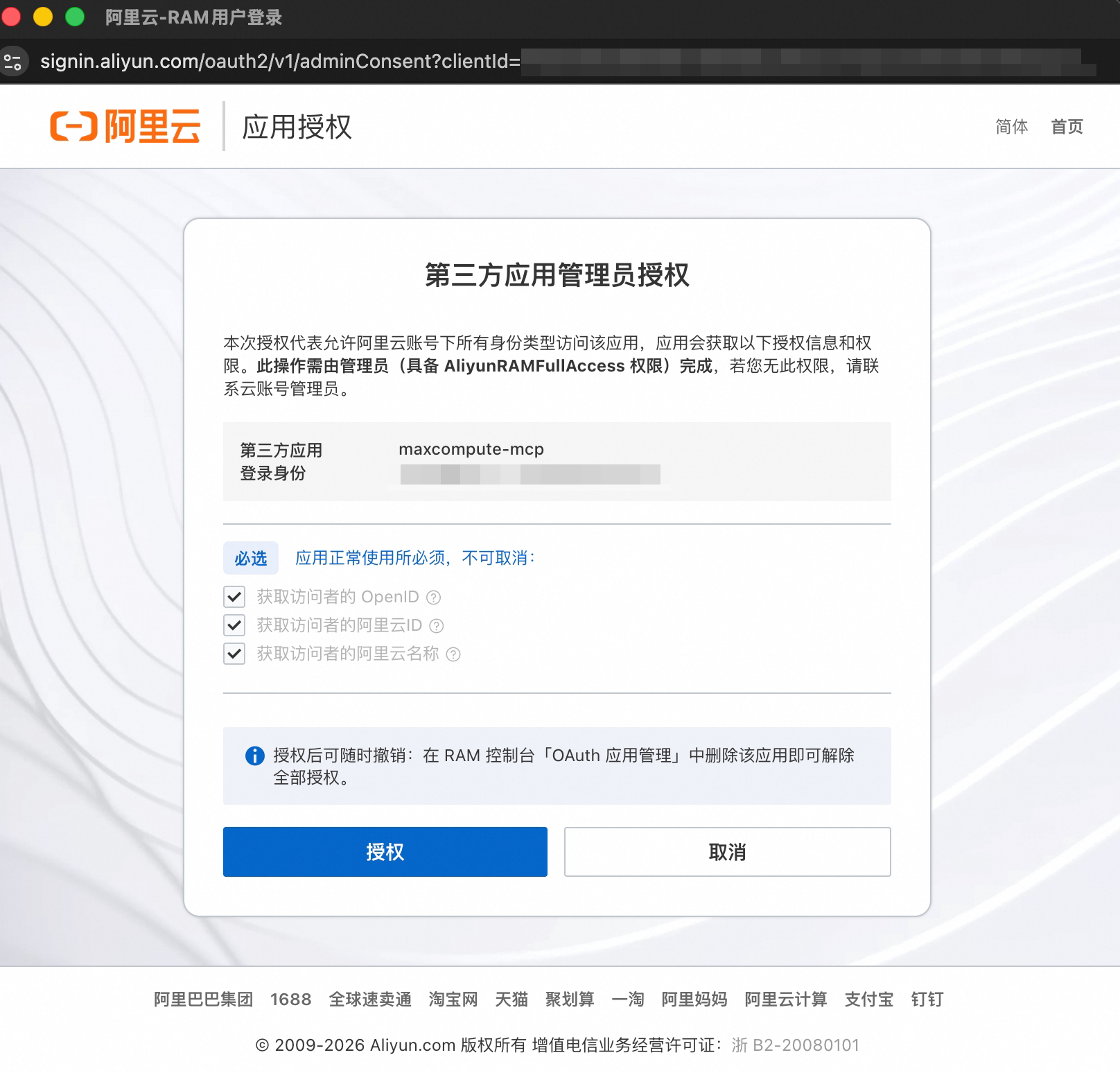
Automatically generated tools
After the connection succeeds, Connector generates tools for accessing MaxCompute data, which you can view in the Available tools section of the App details page.
Differences from the database connectors
| MaxCompute | MySQL, PostgreSQL, PolarDB-X 2.0 | |
|---|---|---|
| Auth config required | Yes | No |
| Connection method | OAuth 2.0 authorization | Import a data source from DMS |
| Suitable data volume | Offline big data analysis | Online business queries |