

Obtain an MCP endpoint from the DingTalk AI app marketplace to connect DingTalk Docs, Sheets, AI Tables, To-Do, Calendar, and bot messages.
The Connector App catalog lists six DingTalk Apps, and they all connect the same way:
None of these six Apps needs an auth config. The connect dialog has a single field: the MCP endpoint issued on the DingTalk side.
You obtain the endpoint from the DingTalk AI app marketplace, on the MCP tab at the top of the marketplace.
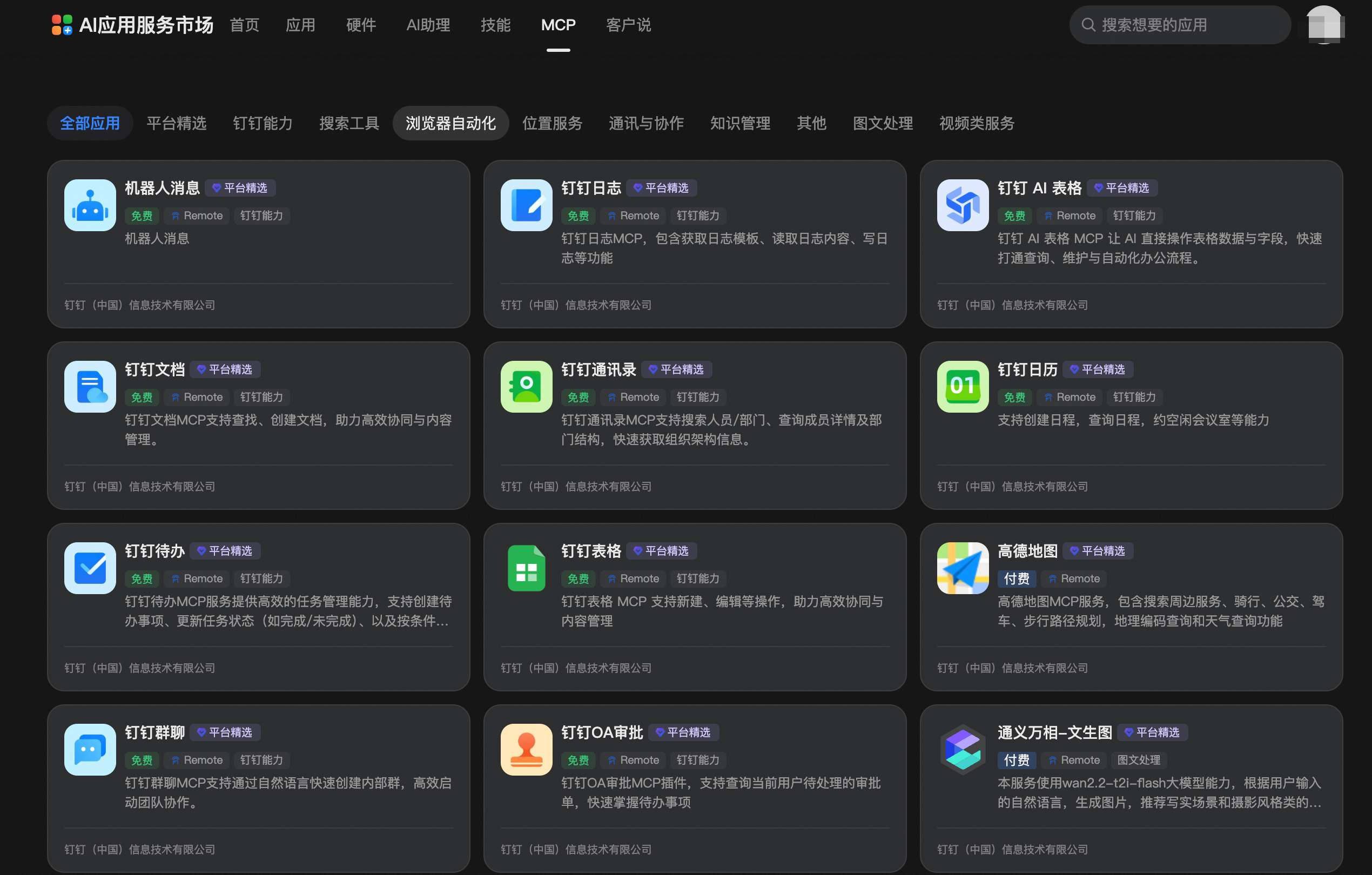 Each App needs its own endpoint and they cannot be shared. Connecting all six means obtaining six addresses.
Once the connection succeeds, Connector wraps the capabilities of that DingTalk App into tools, which you can view in the Available tools section of the App details page. The number of tools and the range of capabilities are determined on the DingTalk side. You can preview them in advance on the Tools tab of the MCP details page in the marketplace.
You can create multiple connectors under the same DingTalk App, each using its own endpoint. To separate different DingTalk organizations or different permission scopes, generate a separate address for each, create one connector per address, and tell them apart by connector name.
For how to manage them, see Connected accounts.
The endpoint carries a
| App | Purpose |
|---|---|
| DingTalk Docs | Read and write DingTalk documents |
| DingTalk Sheets | Read and write DingTalk spreadsheets |
| DingTalk AI Tables | Read and write DingTalk AI tables |
| DingTalk To-Do | Manage DingTalk to-do items |
| DingTalk Calendar | Manage DingTalk schedules |
| DingTalk bot messages | Send messages through a DingTalk bot |
Before you connect
You obtain the endpoint from the DingTalk AI app marketplace, on the MCP tab at the top of the marketplace.
Open the DingTalk AI app marketplace
Find the matching MCP service on the MCP tab
1
Find the matching MCP service
Service names in the marketplace do not match Connector App names exactly:
All of these services carry the Free, Remote, and DingTalk capability tags. You can filter by the DingTalk capability category on the page, or search for the name directly.
| Connector App | MCP service in the marketplace |
|---|---|
| DingTalk Docs | DingTalk Docs |
| DingTalk Sheets | DingTalk Sheets |
| DingTalk AI Tables | DingTalk AI Tables |
| DingTalk To-Do | DingTalk To-Do |
| DingTalk Calendar | DingTalk Calendar |
| DingTalk bot messages | Bot messages |
2
Get the MCP Server config
Click the card to open the details page, then click Get MCP Server config in the Use MCP section on the right.For a service you have already activated, the card and the details page carry an Activated tag and the button reads View MCP Server config.
3
Copy the StreamableHttp URL
The config area offers two formats: StreamableHttp URL and JSON Config. Connector needs the former, so click Copy next to it.The address looks like this:
Steps to connect
1
Open the connect dialog
In the left-hand navigation of the console, click Apps, find the card for the target DingTalk App, and click Connect.The dialog is titled Connect App and spells out the two steps and the address format.
2
Paste the endpoint
Paste the complete address into MCP endpoint (with credential). It is required, and it is the only field.The dialog explains it this way: the complete MCP URL including the credential is stored encrypted and is used only to establish the MCP connection.
3
Submit
Click Submit. Note that the button here is Submit, not the Confirm used by other Apps.
Automatically generated tools
Once the connection succeeds, Connector wraps the capabilities of that DingTalk App into tools, which you can view in the Available tools section of the App details page. The number of tools and the range of capabilities are determined on the DingTalk side. You can preview them in advance on the Tools tab of the MCP details page in the marketplace.
Multiple accounts or multiple organizations
You can create multiple connectors under the same DingTalk App, each using its own endpoint. To separate different DingTalk organizations or different permission scopes, generate a separate address for each, create one connector per address, and tell them apart by connector name.
For how to manage them, see Connected accounts.
Credential safety
The endpoint carries a key, which is equivalent to a password.
- Do not paste the complete address into chat groups, code repositories, or tickets.
- When handing over ownership, generate a new address rather than forwarding the original one.
- After a leak or a personnel change, click Reset service on the MCP details page in the marketplace to switch to a new address, then rebuild the connector with it.
Troubleshooting
| Symptom | Common cause |
|---|---|
| Submitting reports an invalid address | The address is incomplete and the ?key= part is missing |
| The connector is created but the tool list is empty | The App behind that address exposes no capabilities on the DingTalk side |
| A previously working connector suddenly fails | Reset service or Delete service was performed on that MCP service in the marketplace |
| Calling a tool reports no permission | The permission scope of that application on the DingTalk side does not cover the target document or schedule |