

Select the knowledge base type and use case, then configure parsing and chunking strategies
A knowledge base is the core entity of the RAG platform, organizing a set of documents, chunks, embeddings, and index configurations to provide retrieval and question-answering capabilities.
You must select a knowledge base type during creation. Each type corresponds to different data formats and retrieval methods:
When selecting Document Search as the knowledge base type, you must further specify a use case. Different use cases determine distinct retrieval and response-generation strategies:
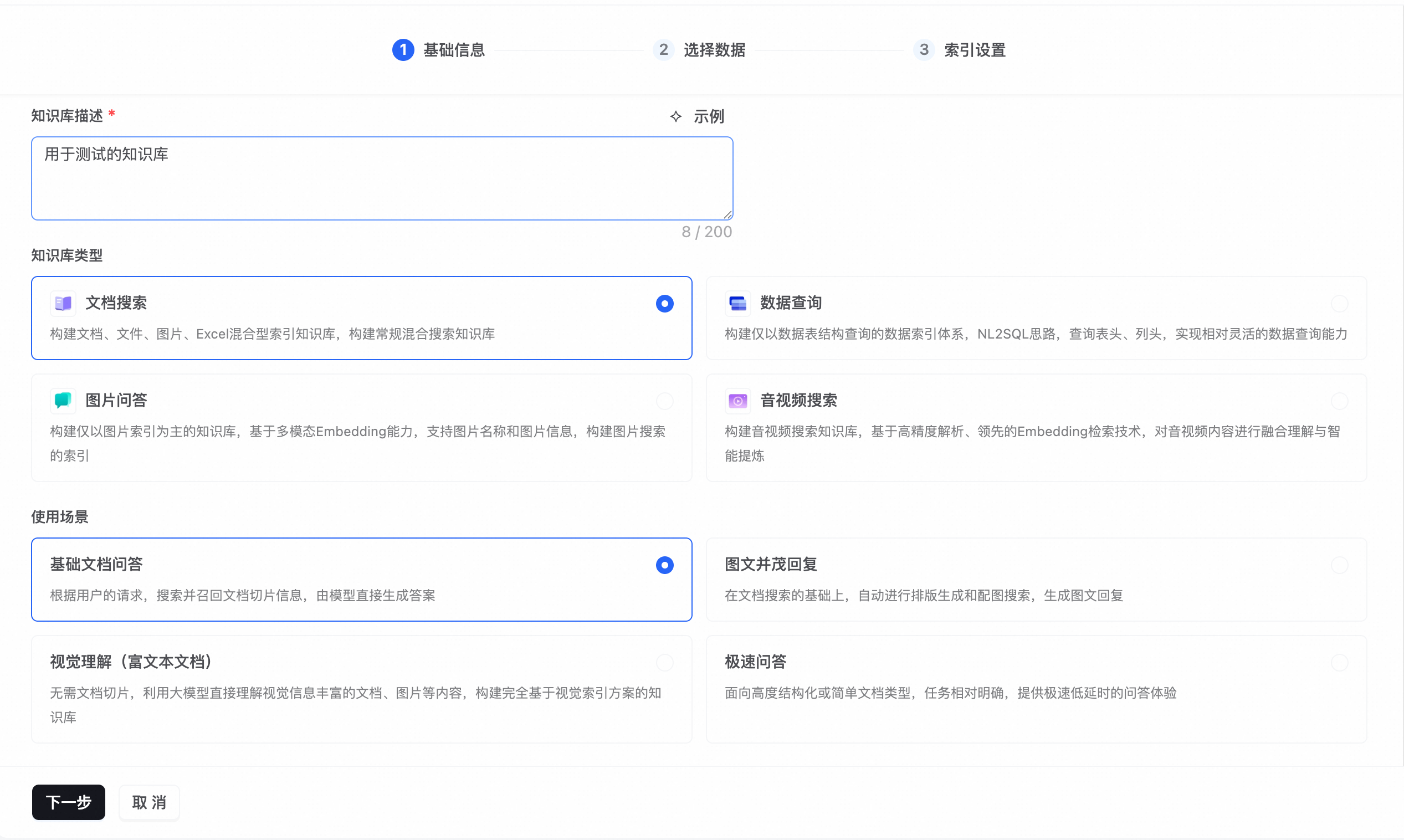 Above: Select the knowledge base type. When Document Search is selected, four use cases appear below. For other types, no use case selection is required.
See Chunking and Vectorization for details.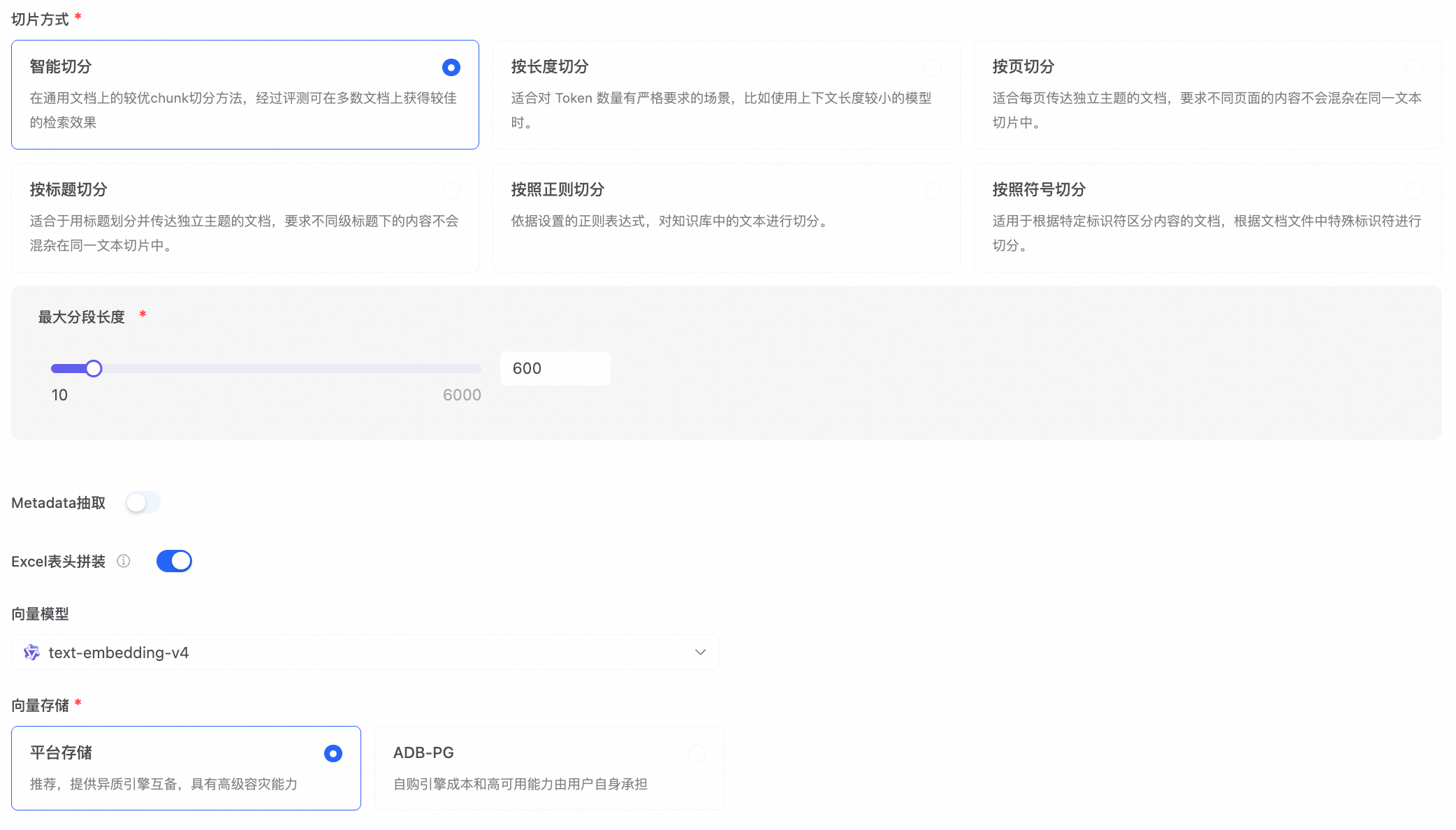
Use the Create Knowledge Base and Import Data API to create a knowledge base and submit an import task in one step:
Knowledge Base Types
You must select a knowledge base type during creation. Each type corresponds to different data formats and retrieval methods:
| Type | Applicable Data | Retrieval Method | Description |
|---|---|---|---|
| Document Search | PDF / Word / Markdown / HTML / Excel | Hybrid Vector + Keyword | Builds a mixed-index for documents, files, images, and Excel sheets |
| Data Query | CSV / Excel / RDS Tables | Natural Language to SQL (NL2SQL) | Queries structured tables based on schema; supports NL2SQL for headers and column names |
| Image Q&A | Product Images / Design Mockups | Multimodal Embedding | Primarily indexes images; supports image search and multimodal (image + text) Q&A |
| Audio/Video Search | Screen Recordings / Training Videos | Transcription + Segment Localization | Integrates understanding and intelligent summarization of audio/video content |
Use Cases
When selecting Document Search as the knowledge base type, you must further specify a use case. Different use cases determine distinct retrieval and response-generation strategies:
| Use Case | Description |
|---|---|
| Basic Document Q&A | Retrieves document chunks and directly generates answers using the LLM |
| Rich-Media Responses | Automatically formats responses with layout and relevant images, generating rich-media replies |
| Visual Understanding (Rich Text Documents) | No chunking required; the LLM directly interprets visually rich documents and images |
| Ultra-Fast Q&A | Optimized for highly structured or simple documents, delivering ultra-low-latency Q&A |
Other knowledge base types—Data Query, Image Q&A, and Audio/Video Search—do not offer use case options.
Console-Based Creation
1
Navigate to Knowledge Management
Log in to the console and go to Data Ingestion → Knowledge Management, then click Create Knowledge Base in the top-right corner.
2
Enter Basic Information
| Field | Required | Description |
|---|---|---|
| Name | Yes | 1–20 characters; unique within the business space |
| Description | Yes | Up to 200 characters; aids filtering |
| Knowledge Base Type | Yes | Document Search / Data Query / Image Q&A / Audio/Video Search |
| Use Case | Yes | Basic Document Q&A / Rich-Media Responses / Visual Understanding / Ultra-Fast Q&A |
3
Import Data
Choose a data source:
Supported formats: PDF / DOCX / XLSX / PPTX / TXT / MD / HTML / CSV, etc.
| Data Source | Description |
|---|---|
| Upload Files | Upload files directly via the UI, up to 50 files per batch. Audio and video files can be up to 2 GB each; see Capacity and Limits for other formats. |
| Select Category | Import from dataset file categories; supports automatic synchronization |
| Select Files | Choose specific files under a dataset category for import |
4
Choose Parsing Method
By default, Default Settings are used—the system automatically selects an appropriate parser based on file type, requiring no manual adjustment in most scenarios.To customize parsing per format, click Custom Settings. Available parsing methods include:
| Parsing Method | Description | Applicable Scenarios |
|---|---|---|
| Electronic Document Parsing | Standard text extraction | Well-formatted electronic documents |
| Intelligent Document Parsing | Layout-level OCR + structural recovery | Scanned documents, complex layouts |
| LLM-based Document Parsing | Uses large language models to understand document structure | Non-standard or irregular document formats |
| Qwen-VL Parsing | Vision-language model | Documents with mixed text and images |
| Audio/Video Parsing | Speech-to-text transcription + timestamped segment localization | Audio/video files |
5
Configure Index Settings
| Parameter | Default Value | Description |
|---|---|---|
| Chunking Method | Smart Chunking | Alternatives: by length / by page / by heading / by regex / by delimiter |
| Maximum Chunk Length | 600 | Range: 10–6000 |
| Embedding Model | text-embedding-v4 | Semantic vector model supporting both Chinese and English |
| Vector Storage | Platform Storage | Alternative: self-managed ADB-PG engine |
Retrieval parameters—including ranking model, TopK, and similarity threshold—are configured in the retrieval service. See Knowledge Retrieval for details.
6
Complete Creation
Click Create Knowledge Base. The system automatically performs parsing, chunking, vectorization, and index building. Once the knowledge base status changes to Ready, it becomes available for retrieval. Processing progress can be monitored in the document list.
API-Based Creation
Use the Create Knowledge Base and Import Data API to create a knowledge base and submit an import task in one step:
Chunking strategies can be adjusted after creation, but changing the embedding model triggers full index reconstruction. For complete capacity limits, see Capacity and Limits.